

Family Inbox: email to calendar
Los artículos de ayuda solo están disponibles en inglés por ahora.
Your household has its own email address from the moment you create it, something like [email protected]. Forward the school newsletter, the practice schedule, or a party invitation to it, and Plannie reads the email (attachments included) and adds what it finds to your calendar. The Family Inbox is part of Plannie Premium.
Your address
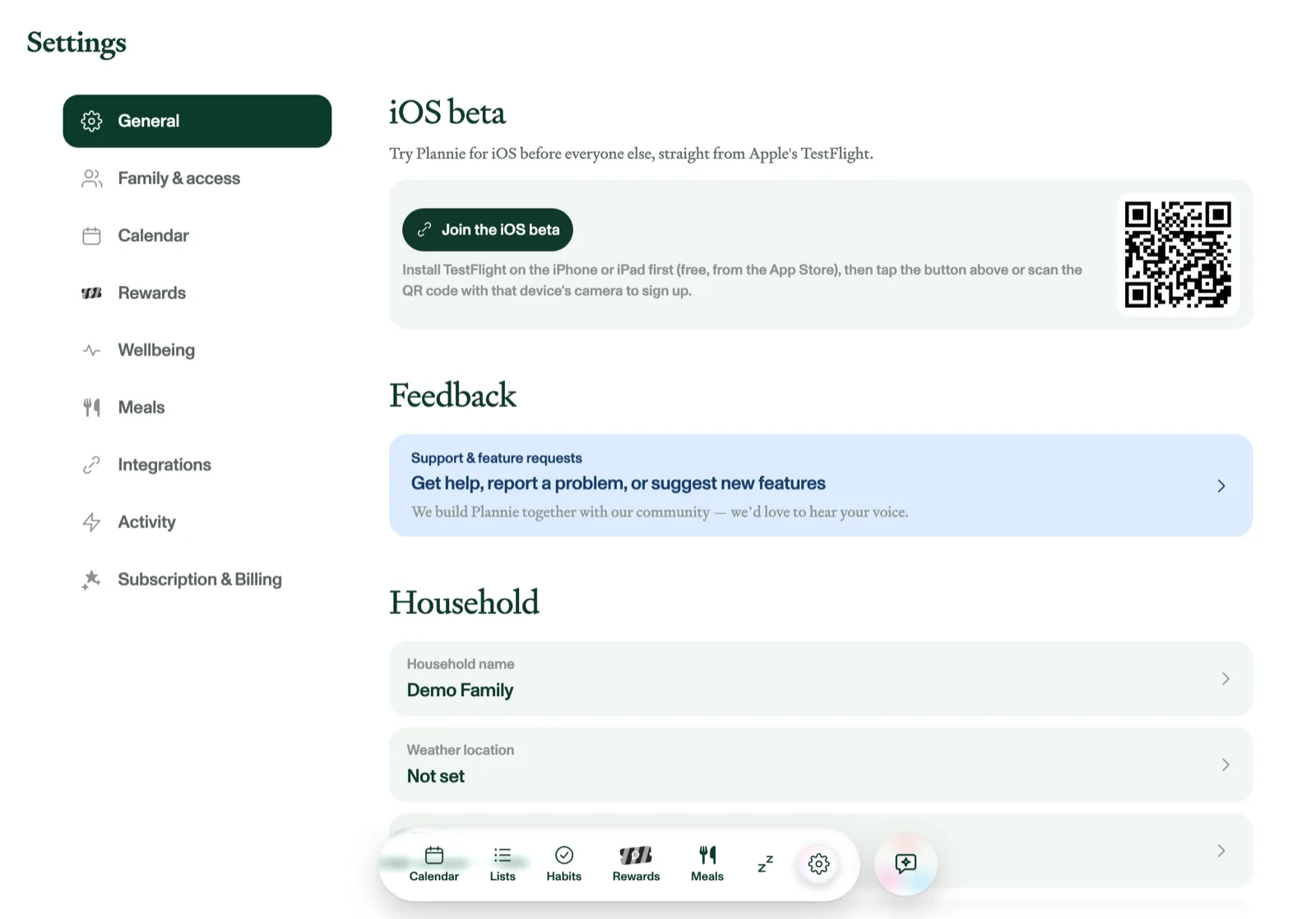
Plannie gives every household its address when the household is created, built from your family name plus a few random characters, so there's nothing to set up before you start forwarding mail. Accented letters become their plain equivalents, so Familjen Åkerström gets familjen-akerstrom. Find it under Settings → General → Family inbox, where you can also change it to something shorter or easier to spell. Changing it means mail to the old address stops being read, so Plannie asks you to confirm.
Changing the address needs an active Plannie Premium subscription. During the free trial and on the free plan the address is shown read-only, but it keeps working, including approving senders. In the iPhone, iPad, and Android apps you can change it freely while we launch, like everything else.
The same Settings → General → Family inbox card has a Replay the import guide link. It reopens the short walkthrough you saw on your first login, covering the three ways to get things into Plannie: forwarding email here, asking Plannie Assistant, and sharing from another app.
Address it to the right people
Put the names it concerns in the subject line, comma-separated ("Vera, Liam"), and the events are attributed to them. You can add a category too (like "Sport"). Anything Plannie can't match goes in as general and is noted in the Activity log.
Only senders you approve
The first time a new address emails your inbox, the message is held and the household owner gets an "Approve this sender?" email with one-tap Approve / Decline. You get an answer straight away either way. Approving confirms the sender and tells you how many held emails it's working through (they land on the calendar a moment later), while declining discards them and blocks the sender. You can do the same from the Family inbox settings in the app, which confirms the same way. Held mail is discarded after 30 days, and mail that fails authentication is dropped silently.
Confirmations
After processing, Plannie replies to the sender with a summary of what was added, one line per event with its date and time, so grandma knows the recital made it onto the calendar. Forwarding the same flyer twice won't create duplicates.
Any PDFs or photos on the email are kept too, and attached to the events they created, so the schedule or invitation is one tap away from the event itself in the calendar. See Attachments.