

Managing family members
Hjälpartiklarna finns än så länge bara på engelska.
Everything about your family lives under Settings → Family & access, the second entry in Settings, right after General.
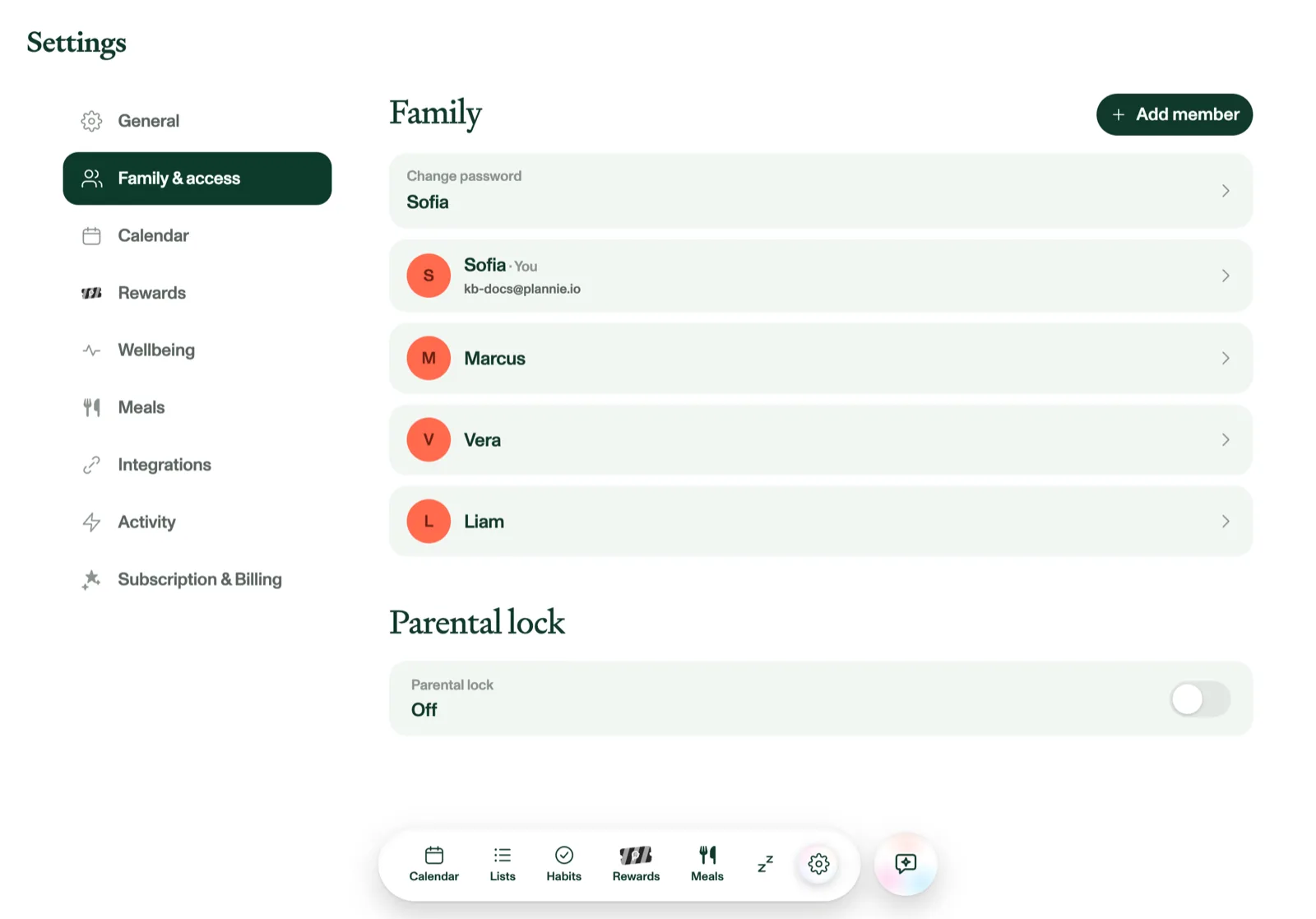
Add and edit members
Tap Add member to add someone new, or tap any member to edit them: photo avatar, name, birthday, and their color (eight to choose from). The photo and the color follow them everywhere: the member filter in the header, calendar events, the Habits and Rewards columns, list assignees, and every “who is this for?” picker. A member without a photo shows their initial in their color instead.
Removing a member asks for confirmation. You can't remove yourself, and a household always keeps at least one adult.
Who can sign in
Members don't need their own logins; a shared kitchen tablet works with none at all. To give someone their own sign-in (their phone, their own reminders), open their member row and use App access → Send invite. It has to be a real address: reserved test domains such as example.com are rejected on the spot. See Joining a household.
You can also remove app access from a member without deleting the member. Their events, tickets, and history stay put. Plannie asks you to confirm first, because it takes effect straight away: that person is signed out on their phone or tablet the moment they next use the app, and they lose access to everything in the family. The person who created the family is protected: their app access can't be removed at all.
If access is removed by mistake, nothing is lost. Their Plannie account still works (the same email and password sign them in), but they'll land on a screen explaining they're not in a family right now. Send a new invite from the same App access row and they can enter the code there, which puts them back on the same member profile with their history intact.
Household settings
The General section holds the household name, weather location and units, timezone, 12/24-hour clock, appearance (Light / Dark / Follow sun), text size, and Language. Language defaults to ‘🌐 Automatic’, which follows the device's language, or pick one directly: English (US), English (UK), Swedish, German, Spanish, or French, each listed in its own language (Svenska, Deutsch, Español, Français). The app, dates, and push notifications switch straight away, no restart needed. In a browser, this setting is the way to read Plannie in another language: the web app asks Chrome and other browsers not to offer to translate the page, because rewriting the text underneath the app makes it stop working. Emails follow your language too, but the ones Plannie sends later on its own (a PIN-reset link, a family-inbox approval request) stay in English if you leave the setting on ‘🌐 Automatic’. These help articles are the exception: on plannie.io the surrounding navigation follows the language you pick there, but the articles themselves are still English only. On a shared kiosk screen, Language is a household setting every kiosk in the household shares; on a personal device it's yours alone, and follows you automatically to your other personal devices. Reminder preferences (default lead time, notifications, and sounds) live under Settings → Calendar, together with the other calendar options.